Connect your platform
Pick where you trade and follow the steps. You do it once.
Read only
None of them places, changes or closes an order.
Trial included
Download them with a plan or during the 14-day trial.
Your token
It is in Import → Platforms. It is private: keep it out of screenshots.
From today
They don’t bring old history. For that, import a file in Import.
Your platform
An add-on you install once that watches every connected account. No charts needed.
- 1
Download the add-on
In QuantFlow: Import → Platforms → NinjaTrader 8 → QuantFlow Add-on. You get
QuantFlow_NT8.zip: don’t unzip it. - 2
Unblock it
Right-click the zip → Properties. If there is an Unblock box at the bottom, tick it and click OK.
- 3
Import it
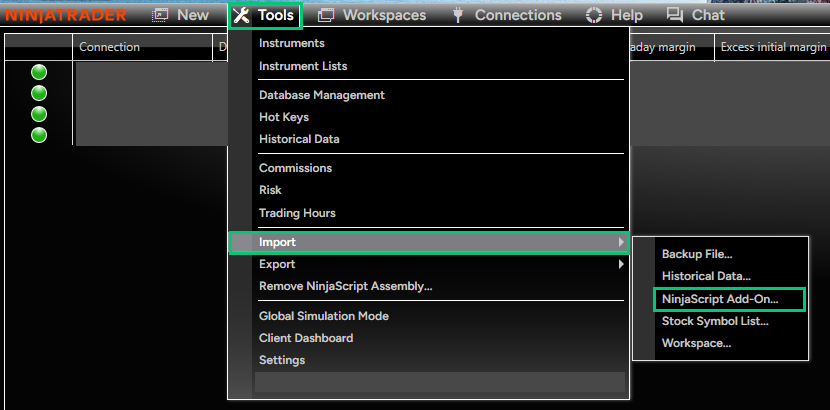
In NinjaTrader: Tools → Import → NinjaScript Add-On… and pick the zip.
- 4
Open QuantFlow
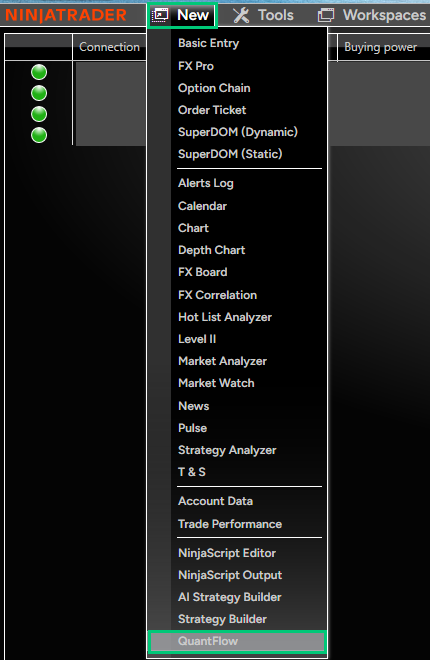
In the New menu, at the bottom, click QuantFlow. If it isn’t there, restart NinjaTrader.
- 5
Paste your token and check
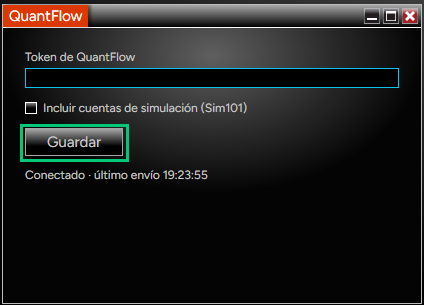
Paste the token from Import and click Guardar (Save; the window is in Spanish). Below it should read Conectado (connected), and your accounts show up in Prop firms → My accounts.
Not working? Common errors+
Error 0x800711C7 when compiling (“An Application Control policy has blocked this file”). It is Windows 11 Smart App Control, which blocks everything NinjaTrader compiles, not only QuantFlow. Turn it off in Windows Security → App & browser control → Smart App Control settings → Off, restart NinjaTrader and import again. Once it is off, Windows may not let you turn it back on without reinstalling.
“You have custom NinjaScript files on your PC that have programming errors”. Another of your scripts doesn’t compile, and NinjaTrader imports nothing until it is fixed. Open New → NinjaScript Editor, press F5, and fix or move out of Documents\NinjaTrader 8\bin\Custom\ the files with errors. Then import again.
QuantFlow shows twice under New, or messages are sent twice. You have the code of an older version, bin\Custom\AddOns\QuantFlow.cs, besides the add-on. Delete it, compile with F5 and restart NinjaTrader.
Windows won’t open the zip. Do the Unblock step. If Windows Security quarantined it: Virus & threat protection → Protection history, open the entry and allow it. Always download it from QuantFlow.
I can’t see a Sim account. They are ignored by default: tick Incluir cuentas de simulación (Sim101) and click Guardar. Playback and Backtest are never sent.
What each window status means+
| Status | What to do |
|---|---|
| Conectado · último envío HH:MM:SS (connected · last sent) | Nothing: it works. |
| Guardado or En marcha (saved / running) | Connect an account in NinjaTrader. |
| N en cola (N queued) | Messages waiting. With a connection, the number drops on its own. |
| Falta el token / Token no válido (token missing / invalid) | Paste the current token from Import and click Guardar. |
| Sin conexión con QuantFlow (no connection) | Check the internet or firewall. Messages wait on disk and go out by themselves. |
| Mensaje rechazado (message rejected) | It is dropped so the rest aren’t blocked. If it repeats, contact support. |
| Revisa account: Ninja tiene X y QuantFlow Y (Ninja has X, QuantFlow Y) | Check the position in NinjaTrader. It usually happens after trading with the add-on removed. |
| Revisa account: symbol cerrada sin QuantFlow… (closed without QuantFlow) | It closed while the add-on wasn’t watching: close it by hand in the journal. |
| Error al guardar / Error al leer la configuración (error saving / reading) | Check the permissions of Documents\NinjaTrader 8\QuantFlow or the antivirus. |
What it sends and how to remove it+
It sends your trades (with partials, adds and reversals, the stop and target) and each account’s balance, day’s result and position. Each NinjaTrader account shows up in QuantFlow as its own account, created the first time with a 50K size until you change it. It sends from the moment you install it. QuantFlow doesn’t need to be open: NinjaTrader is enough.
It keeps the token and the outgoing queue in Documents\NinjaTrader 8\QuantFlow.
To remove it: Tools → Remove NinjaScript Assembly… → QuantFlow_NT8. To make the token stop working, click Generate a new token in Import. What is already in QuantFlow is not deleted.
One EA per account, on any chart. It sends every position and never trades.
- 1
Download the EA
In QuantFlow: Import → Platforms → MetaTrader 5 → QuantFlow EA (MT5). You get
QuantFlow_MT5.ex5. - 2
Copy the EA
File → Open Data Folder, go to
MQL5\Expertsand paste the file.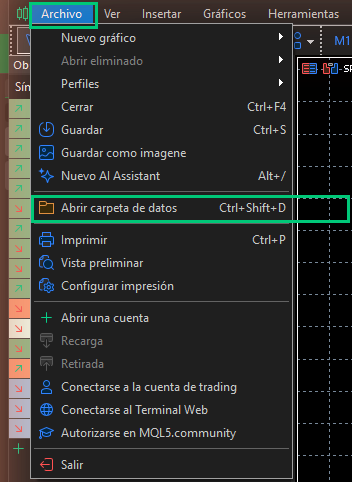
- 3
Refresh the Navigator
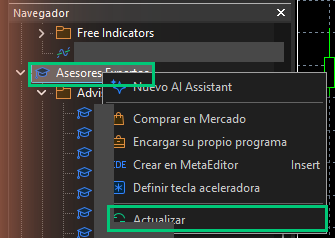
In the Navigator, right-click Expert Advisors → Refresh. QuantFlow_MT5 shows up.
- 4
Allow the connection
Tools → Options → Expert Advisors: tick Allow WebRequest and add
https://www.quantflowpro.comto the list.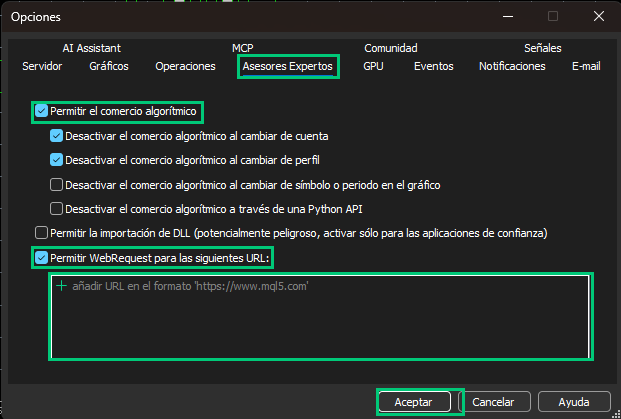
- 5
Put it on a chart
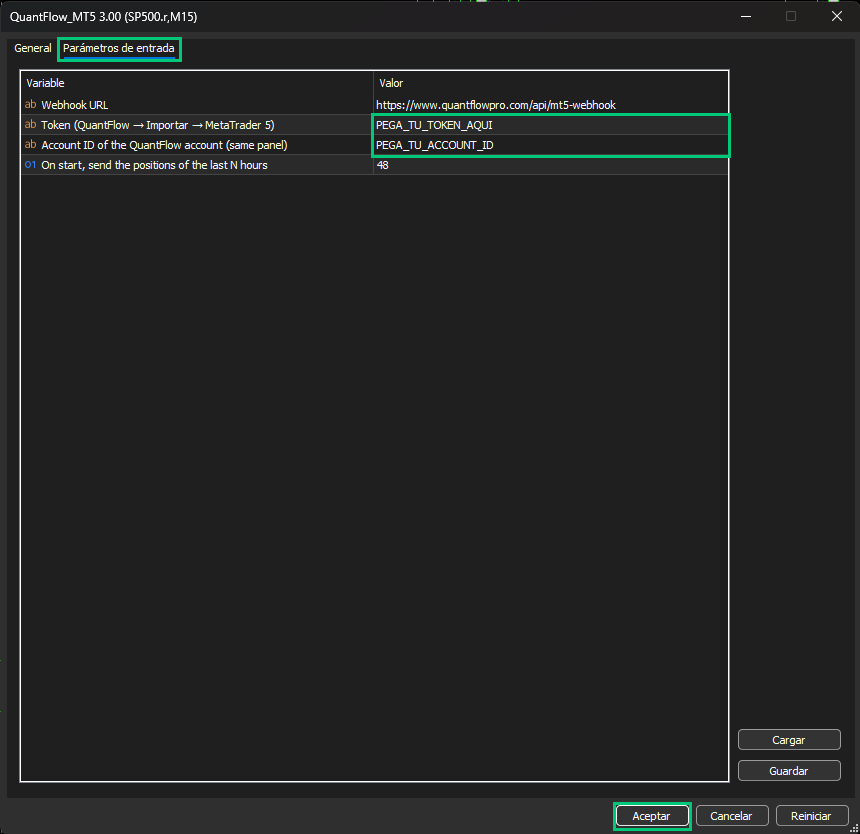
Drag QuantFlow_MT5 onto a chart of the account. In Inputs, paste the token and the Account ID from Import and click OK.
- 6
Check
Toolbox → Experts shows “QuantFlow v3: vigilando la cuenta…” (watching the account).
Not working? Common errors+
| Message in Experts | What to do |
|---|---|
| “QuantFlow: pega el Token y el Account ID…” and the EA leaves | Attach it again with both values. |
| “MT5 no permite la dirección…” (error 4014) | Add https://www.quantflowpro.com to the WebRequest list (step 4). |
| “la Webhook URL no es válida” (5200) | Set it back to https://www.quantflowpro.com/api/mt5-webhook. |
| “tardó demasiado en responder” (5202) or “sin conexión” | Nothing: it retries by itself (up to every 60 s). |
| “token no válido” | Copy the current token from Import, in every EA. |
| “el servidor respondió N…” | It retries. If it repeats, contact support with the message. |
Trades land in another account. The Account ID belongs to another one. Fix it with F7 on the chart; to move what was already sent, delete the global variables starting with QF3_D_ in Tools → Global Variables and attach the EA again: it resends the last 48 hours to the right account.
Netting accounts: the EA is built for hedging accounts (the usual kind at CFD prop firms). On netting, a reversal is sent as a close.
The EA inputs+
| Input | What to enter |
|---|---|
| Webhook URL | Leave it as it is. |
| Token | Your User Token from Import. |
| Account ID of the QuantFlow account | The Account ID from Import: the journal account you had selected. |
| On start, send the positions of the last N hours | 48 by default: what it sends on start. |
How to remove it+
Right-click the chart → Expert Advisors → Remove and delete QuantFlow_MT5.ex5 from MQL5\Experts. Optional: remove the URL from WebRequest and the QF3_ global variables.
A cBot, one instance per account. It sends every position and never trades.
- 1
Download the cBot
In QuantFlow: Import → Platforms → cTrader → QuantFlow cBot. You get
QuantFlow_cBot.algo. - 2
Install it
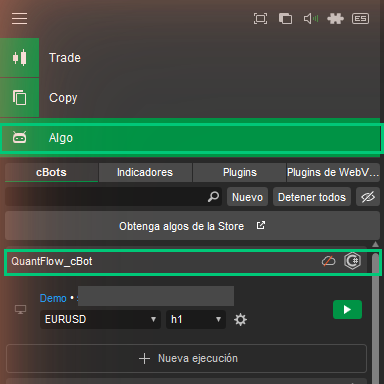
Double-click the file: it shows up in Algo → cBots as QuantFlow_cBot.
- 3
Add it to the chart
Go back to the main screen (Trade). In the toolbar of a chart of the account, click the Add cBot icon (the robot) and pick QuantFlow_cBot.

- 4
Paste token and ID
Replace
PEGA_TU_TOKEN_AQUIandPEGA_TU_ACCOUNT_IDwith the token and the Account ID from Import and click Add to chart.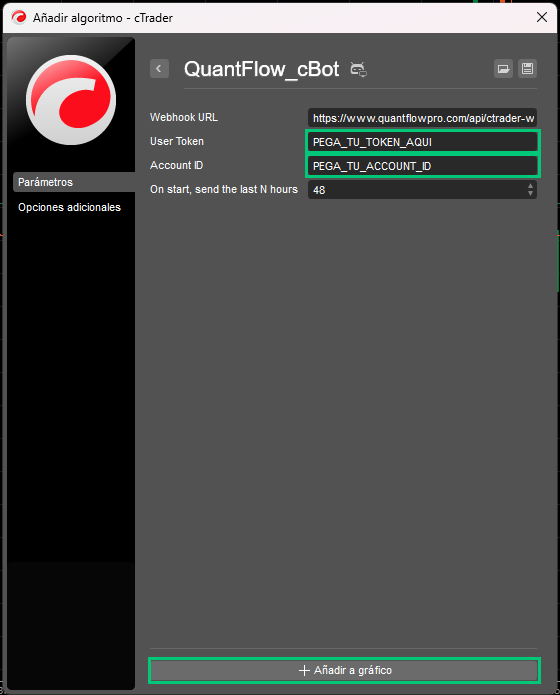
- 5
Start it
Click Start and accept Full Access if asked. The Log shows “QuantFlow: activo, vigilando la cuenta.” (active, watching the account).
Not working? Common errors+
| Message in Log | What to do |
|---|---|
| “falta el token o el Account ID…” and it stops | Fill in both parameters and start it again. |
| “token incorrecto… reinicia el cBot” | Paste the current token, then stop and start the instance. |
| “no se ha podido enviar (N), se reintentará” | With N = 0 there is no connection: it retries every 30 s. If N is another number and it repeats, contact support. |
| Trades land in another account | Fix the Account ID and restart: it resends the last 48 hours. |
The cBot only sends while cTrader is open and the instance is running.
How to remove it+
Stop the instance (Stop), delete it and remove the cBot from Automate. Optional: delete Documents\QuantFlow\ctrader-*.queue.
No direct connection: they come in through NinjaTrader 8, if your account also shows there.
- 1
Install the NinjaTrader add-on
Follow the NinjaTrader 8 steps.
- 2
Connect the same account in Ninja
The Tradovate or Rithmic account you use on the other platform.
- 3
Trade wherever you like
With NinjaTrader open and connected, the add-on sees the account and sends it. What you trade while Ninja is closed doesn’t come in.
What about TopstepX?+
It has no automatic connection: import its trades from a file in Import.
MetaTrader 4 has no connector: import its history from a file in Import.